Onsite survey
The Onsite survey is displayed as an overlay on your website.
When you create an Onsite survey, you have 10 question types to choose from:
- Single Select
- Short Free Text
- Rating Scale
- Multi Select
- Long Free Text
- Net Promoter Score (NPS)
- Customer Satisfaction Score (CSAT)
- Customer Effort Score (CES)
- Ranking
- Mailing
- Matrix
- Emojis
You can use multiple question types in one survey.
Would you like to learn more about the question types?
In the Build section, you can now create your survey. You can define when the survey is displayed in the Target section.
Read more about this in General targeting, Onsite survey – Display and Onsite survey – Advanced targeting.
Every survey starts with a welcome message and ends with a thank-you message. We have already created both for you.
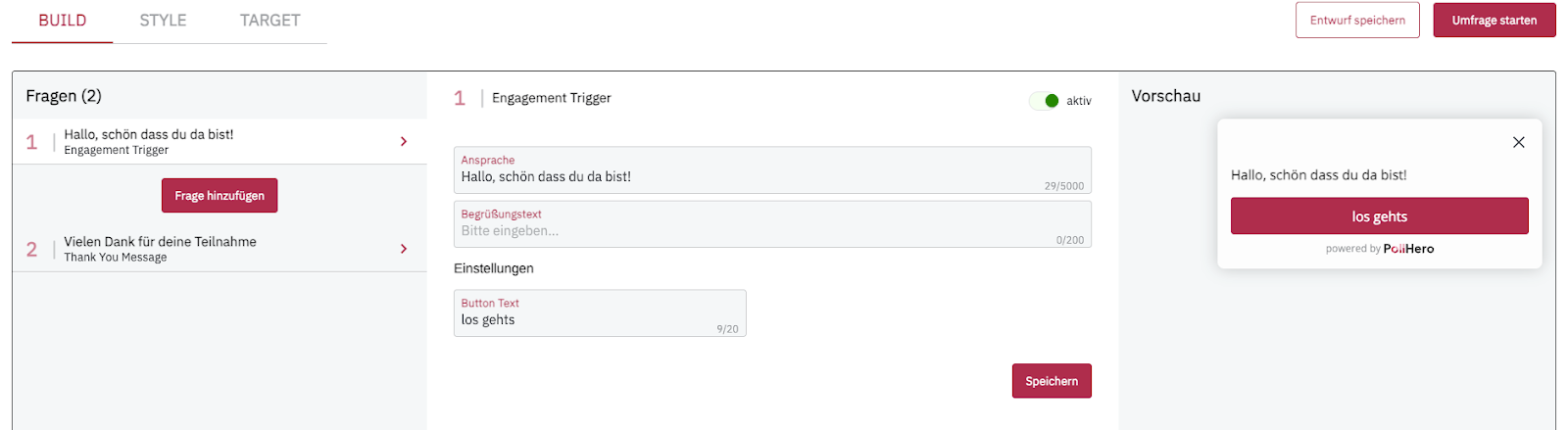
You can customize the text of the welcome and thank-you messages individually. You can also deactivate both messages if you want to start directly with a question or do not want to display a thank-you message.
On the right side of the screen, you can see directly how your message or question looks. You can change the design in the Style section.
Read more about this in Survey design, Onsite survey – Position & display and Onsite survey – Close/minimize.
Step 1: Add question
Between the welcome message and the thank-you message on the left side of the screen is the Add Question button. Click the button to open the overlay with the question types.
Learn more about the question types here: Explanation of question types
You can use multiple question types in one survey. You can also change the order of the questions by grabbing a question and dragging it to another position.
You cannot change the order of the welcome message and the thank-you message.
You can create multiple thank-you messages and change their order among themselves. Additional thank-you messages can be found in the question types tab.
Why are multiple thank-you messages useful? Depending on how complex your survey is, respondents can exit your survey at different points. It makes sense to display different thank-you messages to different respondents. It can also be useful to display a different message to respondents who give you positive feedback than to respondents who give you negative feedback.
Step 2: Edit question
Depending on the question type, you have different configuration options. Each question type has a question text that you can edit. The question you choose should match the question type. Yes/no questions are well suited for Single Select questions, questions about your customers’ opinions can be asked well as free-text questions.
You can set whether a question is a required question. If you select this option, you can write a custom error message or use our standard wording. The error message is displayed when a respondent clicks Next without having answered the required question.
If you have not set the question as a required question, respondents can skip the question. You can customize the text of the skip button or use our suggestion.
You can add an optional description. For example, for Multi Select questions, you can specify how many answers can be selected. Or you can explain your question in more detail, provide examples for free-text answers, etc.
Depending on the question type, you can set whether your answers are displayed in random order, in the order in which you entered them, or randomly except for the first or last answer.
What is this good for?
For example, if you have a Multi Select question with brands as answer options, it can be helpful to sort the brands alphabetically or place your biggest competitors at the end.
Step 3: Add rules
This step is optional. It can help you better understand your customers’ responses in more complex surveys.
Rules follow an if/then logic that differs for each question type. You can combine multiple rules; they follow an OR logic.
For example, you can ask customers who have given you a poor rating to explain their rating in more detail. Or you can ask answer-based follow-up questions for yes/no questions.
A detailed explanation of all rules can be found in the article Add logic.
Step 4: Publish survey
You can save your survey as a draft at any time. To do this, click the red-outlined Save Draft button at the top right.
Once you are satisfied with your survey, you can publish it using the red Start Survey button at the top right.
You can run as many different surveys on your website as you want; there is no limit.
Continue with Survey reporting
Learn more about creating the other survey types: