View reporting
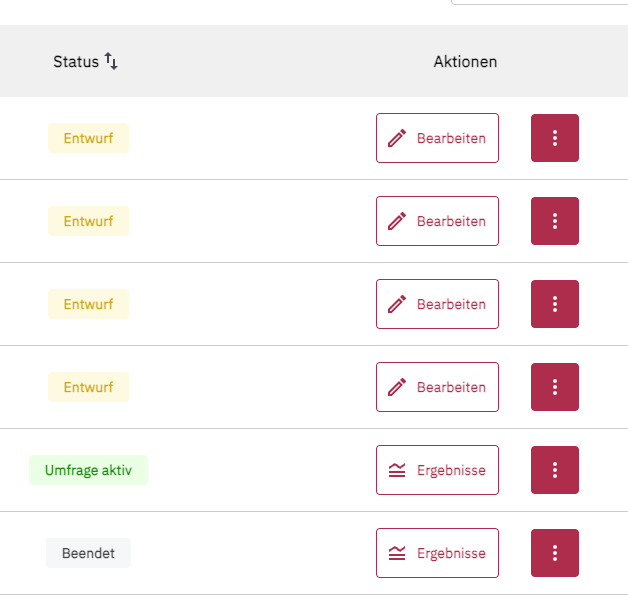
You can view and monitor your survey at any time. To do so, go to the project overview page. Here you can see the status of your surveys: Draft, Survey active, Paused, or Finished.
If the survey is active, paused, or finished, you will see a Results button. Click it to view the (preliminary) results of your survey.
In the reporting section, you can set when you launched and ended the survey.
You can see the following information:
- Total impressions: shows how often the survey was displayed. Each participation counts once, even if the visitor views several pages. A user can be counted more than once if they are allowed to fill out the survey several times.
- Total participants: number of participations in which at least one question was answered.
- Completion rate: share of participants who fully completed the survey, in percent (completions ÷ total participants × 100). The number of completions is shown in brackets.
- Active since: indicates when the survey was launched.
Important note regarding impressions: If you use a survey started in minimized mode, impressions are only counted when a user sees the opened survey. The visibility of the badge/speech bubble is not recorded as an impression!
Additionally, you can export the report as a CSV file, copy the link to the report to share it with your team, and refresh or reset the survey results.
In the reporting section, you will see a breakdown of all questions and answers.
The results look different depending on the question type, but for each question you will always find out
- how many answers were submitted,
- how often the question was shown (impressions),
- whether the question was mandatory,
- what the response rate is (responses ÷ impressions of the question × 100).
We explain in detail when an impression, a response and a completion count in How we count impressions, responses and rates.
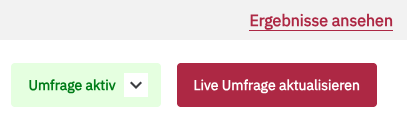
You can also reach the results page via the editor of your survey.
In the upper right corner, you will find the View results link, which takes you to the reporting.
Related articles
- How we count impressions, responses and rates
- Summary/response overview
- Segmented reporting
- Reporting: Analyze sentiment
- Reporting: Single Select & Multi Select
- Reporting: Short & Long Free Text
- Reporting: Net Promoter Score (NPS) & Rating Scale
- Reporting: Customer Satisfaction Score (CSAT) & Customer Effort Score (CES)
- Reporting: Matrix
- Reporting: Ranking