Shopify – setup and consent
Set up PollHero in your Shopify store: install the app, activate it in your theme, place the survey on the thank-you page and control consent.
With the PollHero app for Shopify, you display surveys in your store without adding code to your theme. The app comes with two building blocks that you set up independently of each other:
- App embed in the theme: loads the PollHero script in your online store. You need it for Onsite and Embedded surveys.
- Block for the thank-you page: shows a Post Purchase Survey in the checkout right after the purchase. This block also works without the app embed in the theme.
Step 1: Install the app
Install the PollHero app from the Shopify App Store in your Shopify store and then open it in the Shopify admin.
During installation, PollHero automatically creates an account and a project for your store. The project is named after your store and is permanently linked to it. You neither have to create a project nor copy a tracking code.
Step 2: Activate PollHero in the theme
You need this step if you want to display Onsite or Embedded surveys in your online store.
- Open the project settings of your store in PollHero.
- In the Installation section, under Installation - Shopify Theme Extension, click Activate Shopify app. The theme editor of your current theme opens with the app embeds.
- Activate the PollHero app embed there and save the theme.

From now on, your theme loads the PollHero script on all pages of your online store.
The app embed applies to the theme in which you activate it. If you publish a different theme, activate PollHero there again.
Step 3: Place the survey on the thank-you page
You need this step for the Post Purchase Survey.
-
In the Shopify admin, open Settings → Checkout and click Customize for your checkout configuration.
-
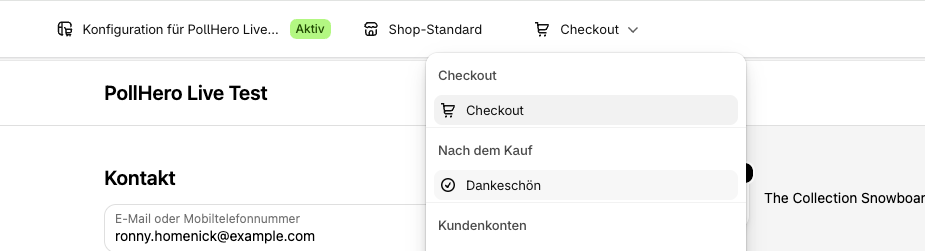
In the checkout editor, open the page selector at the top and select the Thank you page under Post-purchase.
-
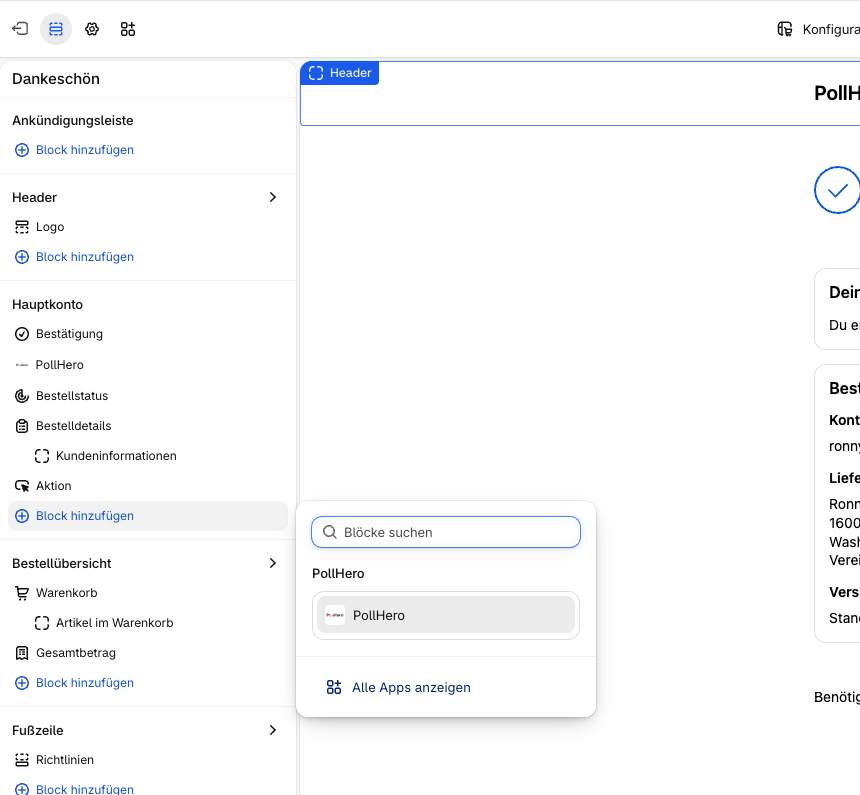
Click Add block in the desired section, select the PollHero app block and move it to the desired position.
-
Save the change.
The block stays invisible as long as there is no matching survey. In that case it does not take up any space on the page either.
Step 4: Create and start a Post Purchase Survey
Create a new survey in PollHero and select the survey type Post Purchase Survey. Define questions and targeting, and start the survey.
In the checkout, the survey adopts the design from Shopify's checkout settings, for example colors, fonts and buttons. The styles from the project settings in PollHero do not apply to the Post Purchase Survey.
After the next purchase, the survey appears on the thank-you page. It is displayed when all of the following apply:
- The survey is started, not paused, and its start date has been reached.
- The language of the survey matches the language of the checkout, or the survey applies to all languages.
- The target audience matches, if you have restricted the survey to new or existing customers.
- The targeting settings of the survey allow it to be displayed, for example if the customer has not yet seen or not yet answered the survey.
- Consent has been given, if you use the Customer Privacy API (see next section).
Consent: using the Customer Privacy API
In the project settings, the Installation section contains the option Use the Customer Privacy API. It determines whether PollHero respects the consent your visitors give in Shopify's cookie banner. The setting applies to both building blocks: the script in the theme and the block on the thank-you page.
| Setting | Script in the online store | Survey on the thank-you page |
|---|---|---|
| No (default) | Is loaded immediately on every page, regardless of consent. | Is displayed regardless of consent. |
| Yes | Is only loaded once the visitor has consented to the analytics category. | Is only displayed if the visitor has consented to the analytics category. |
With Yes, the following applies in detail:
- In the online store: When a page is opened, PollHero checks via Shopify's Customer Privacy API whether processing for analytics purposes is allowed. Only then is the script loaded. If a visitor consents later in the cookie banner, PollHero loads the script right after the consent, without the page having to be reloaded.
- On the thank-you page: Without consent to the analytics category, the block stays empty and the customer does not see a survey.
- Visitors who decline or do not respond to the banner do not see any surveys. Therefore, expect fewer impressions and answers than with No.
To change the setting:
- Open the project settings of your store.
- Under Use the Customer Privacy API, select Yes or No.
- Click Save changes.
The change takes effect with the next page view in your store.
Yes requires that your store collects consent via Shopify's Customer Privacy API, for example with Shopify's cookie banner or a consent tool that passes its decisions on to Shopify. Without such a banner, it depends on your store's privacy settings whether processing is considered allowed.
You can read which data PollHero stores in the browser in the article Cookies & localStorage.